
Based on my research into popular wall art listings on Etsy, I discovered Japanese-themed wall art to be one of the three most popular styles sold on Etsy. Japanese culture and Japanese-themed interiors, such as Japandi, have become immensely popular in the United States and Europe, which explains this rising popularity. Therefore, aspiring Etsy wall art sellers should strongly consider this niche. During my research, I also noticed that many existing Etsy sellers are successfully selling Japanese-themed AI wall art. A new seller often struggles with a lack of knowledge about the Japanese wall art market and the AI creation and production process. Therefore, I have written this comprehensive guide that uses research-driven insights to help aspiring sellers learn how to make and sell trending Japanese AI wall art on Etsy the correct way. Specifically, in this tutorial, you will learn the following:
- Which AI model to use?
- What to create?
- How to prompt to get the best results?
- How to process raw AI-generated files to make them print-ready?
- How to size the images?
- How to create listing photos?
- How to produce the prints?
Which AI model to use?
There are plenty of AI models available on the market. However, only two AI models stand out from the crowd when it comes to creating artistic output. These are Midjourney and Adobe Firefly. I am using Adobe Firefly for this tutorial because it offers private generations, commercial safety, and a lower price. You can read about the pros and cons of each tool in the article How to Sell Wall Art Prints on Etsy: The Complete Blueprint from AI Design to POD Sales.
What to create?
Based on the analysis of 500+ bestsellers, the popular Japanese-themed listings depict the following:
- Street views
- Nature and botanical illustrations
- Animal and aquatic creatures, such as cats, frogs, koi fish, and owls.
- Area-specific designs, such as bathroom, bedroom, and kitchen.
Therefore, by targeting these specific trends, you are creating products with proven market demand.
How to prompt correctly?
If you master the art of prompting, trust me, you have won half the battle. If you can differentiate your art at the prompt level, you can be highly successful. Many sellers think that AI art is bad because they input generic prompts. You can really generate highly artistic output with AI if your prompt includes all key details. The logic is simple:
- Generic prompt = generic output, more competing listings
- Specific prompt = specific output, fewer competing listings
You can make Japanese wall art in two ways:
- Adding Japanese elements without a specific art style, examples: a Japanese street view, a cat eating ramen, or
- Specifying a Japanese art style, examples: woodblock print style, pop art style, wabi sabi style. An AI model understands these styles, and you can include them in your prompts.
Real-life examples
Japanese Street View
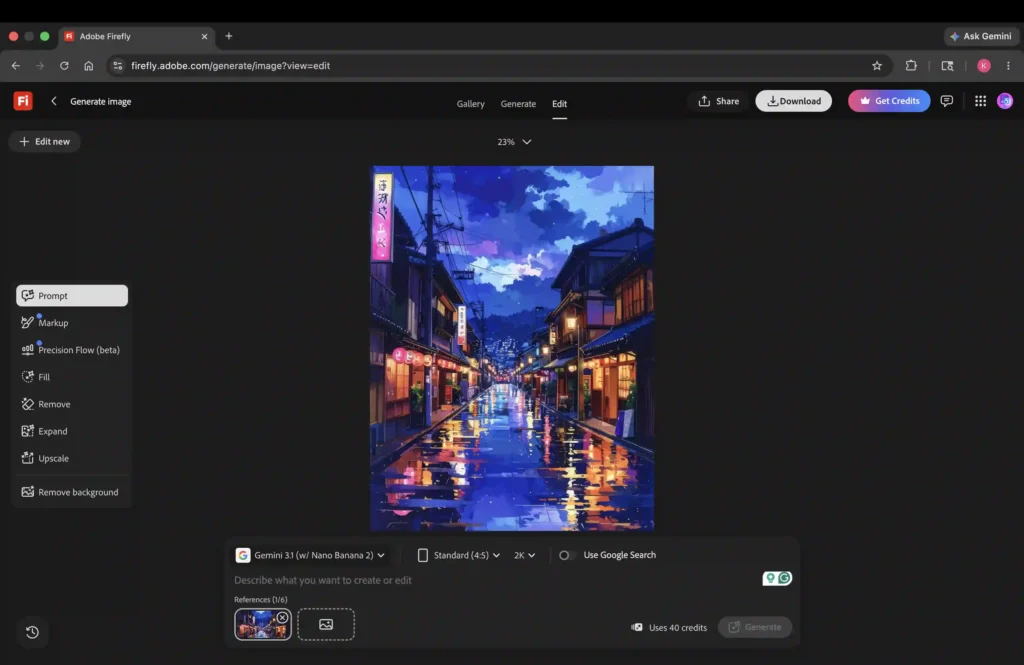
The screenshot below shows a Japanese street view generated with Adobe Firefly. I have mentioned key details in the prompt, such as a rainy street, nighttime, and water reflections.
Nature and botanical illustrations
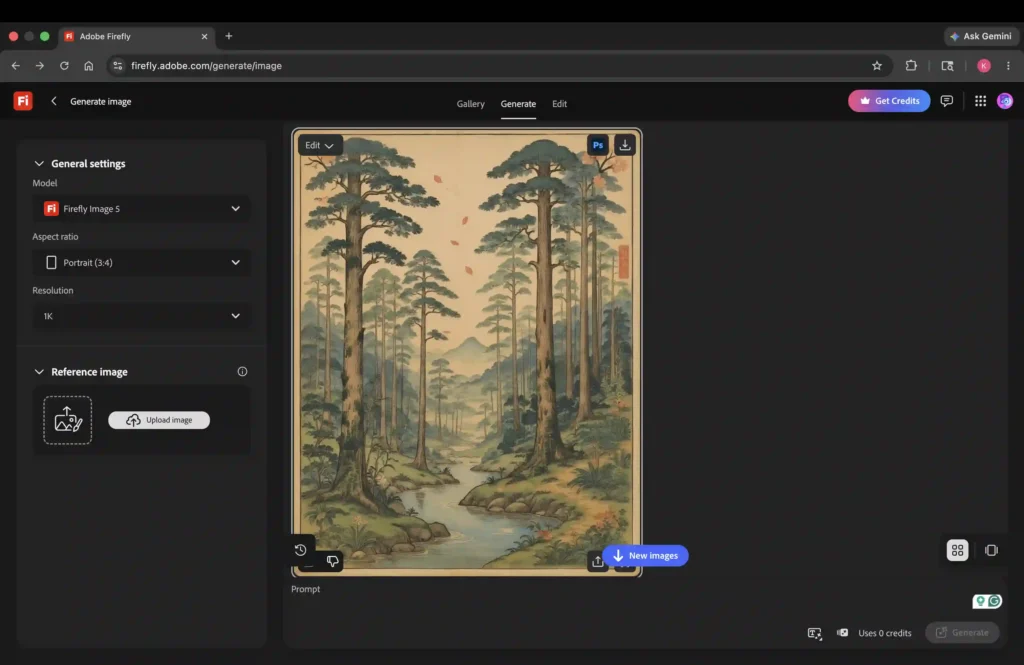
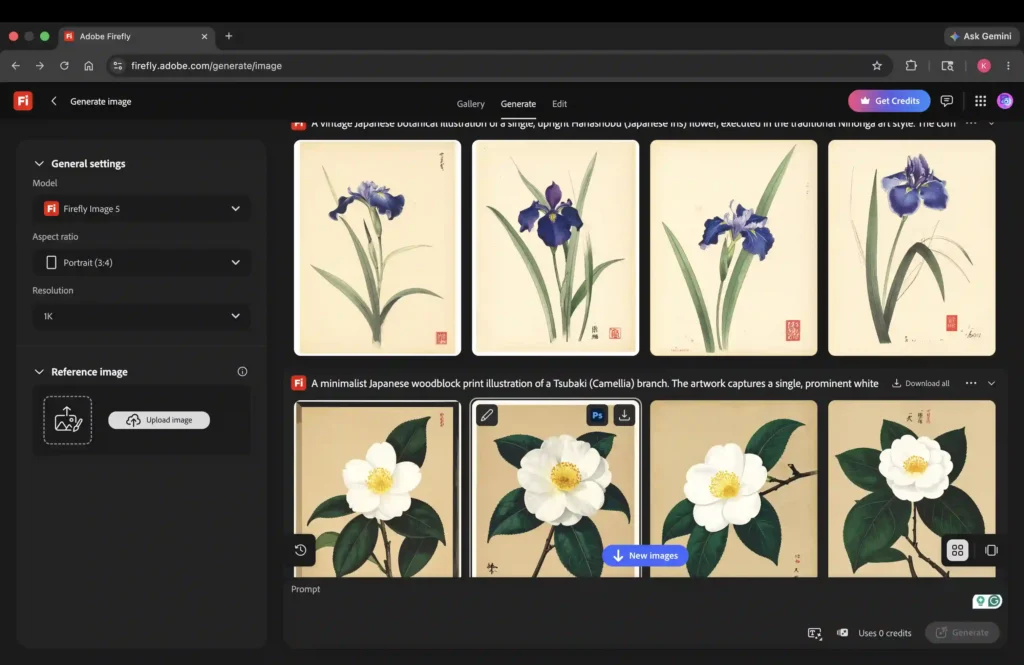
In the screenshots below, I have generated nature and botanical illustrations in Adobe Firefly using the Japanese woodblock print style.
Area-specific, animal-based design
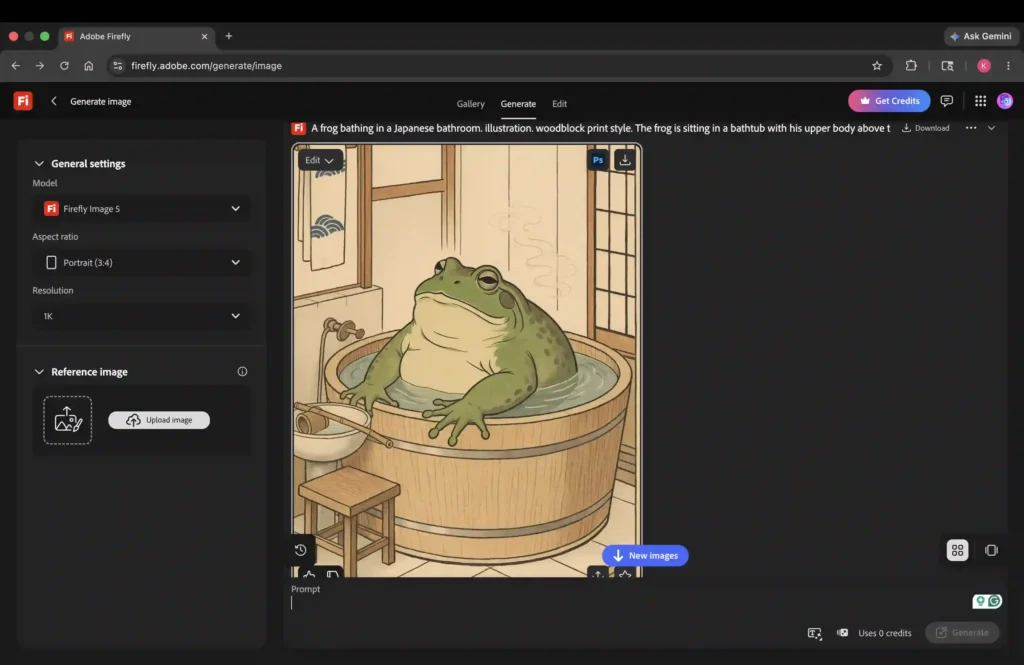
In the screenshot below, I have generated a Japanese bathroom frog print. The prompt clearly describes the type of bathroom (Japanese bathroom), what the frog is doing (bathing), and the art style (woodblock print). You can be as specific as possible, including the colors of the walls and floor, the overall environment, sunlight, and any other aspects you want to include.
Correct Any AI Imperfections
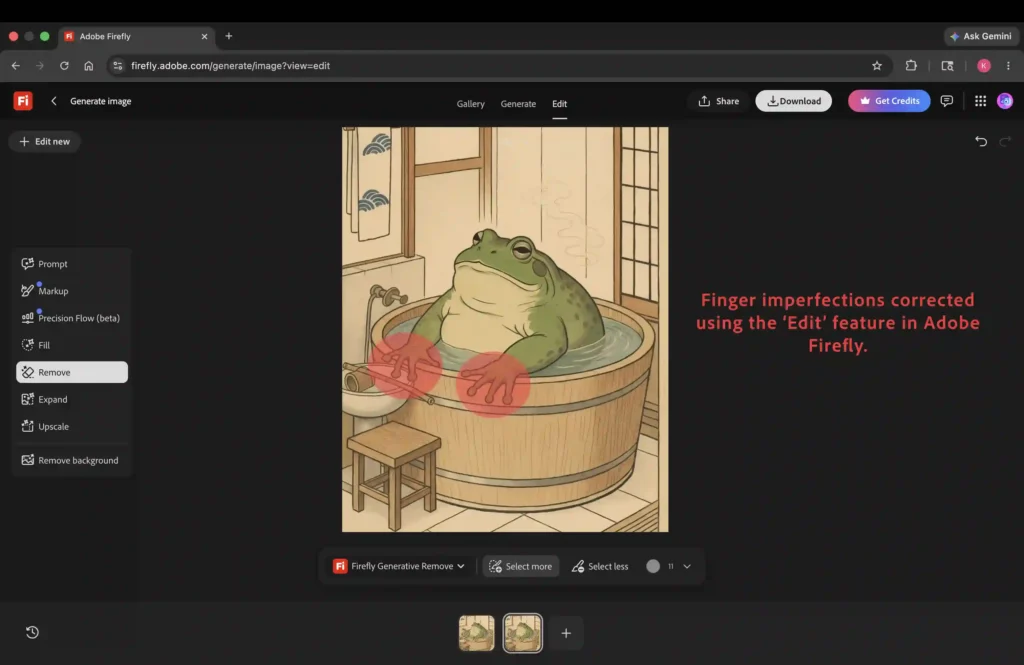
Sometimes AI-generated images can have slight imperfections, especially in the hands. As you can see in the screenshot above, the number of fingers on the frog’s hands does not match. In this case, you need to correct these imperfections. You can easily do so using the edit feature in Adobe Firefly. You can highlight the imperfections and enter a prompt to correct them. In the screenshot below, I made the frog’s hands identical and matched the number of fingers on each hand using the ‘Edit’ feature.
Replace Japanese text
Japanese-themed AI images may include random Japanese characters that have no meaning. You can replace the text with something meaningful. You can leverage Google Gemini or ChatGPT to find the appropriate Japanese text for your wall art. There are various Japanese fonts available in Photoshop that you can use to add the text. You can also remove the text completely; however, keeping the Japanese text is a powerful way to convey the theme.
How to process the raw AI-generated file to make it print-ready?
Upscale
AI-generated images lack sufficient resolution for printing. The print standard requires 300 ppi, while the AI output is 72 ppi. You need to upscale the generated images and upgrade them to 300 ppi. Topaz AI and Adobe Lightroom (which also uses Topaz AI) are ideal options for upscaling. You can also upscale directly in Adobe Firefly and Photoshop, but there is a maximum limit, whereas Topaz AI and Adobe Lightroom allow much higher upgrades.
Process
Sometimes AI images can be highly saturated or flat. In this case, you should adjust the contrast, brightness, and saturation to further refine these images. You can accomplish this with Photoshop or Adobe Lightroom.
What sizes to offer and how to prepare?
Wall art shoppers don’t buy one single size. You need to offer multiple sizes to maximize your sales. The process for preparing multiple sizes differs for physical and digital prints. You can read the article ‘How to Sell Wall Art Prints on Etsy: The Complete Blueprint from AI Design to Consistent Sales‘ to learn about the common sizes and how to prepare them for each print type.
How to create listing photos?
You can use mockups to create listing photos. There are three ways to do this, as follows:
- Using a mockup website to upload your artwork and generate listing photos.
- Using websites to get mockup scenes where you drop your artwork in applications like Photoshop or Canva
- Creating your own mockups using AI. You can read the article ‘The Blueprint for High-Converting Etsy Wall Art Listing Photos‘ to learn how to create AI mockups for your wall art.
What is the ideal production method?
You can sell physical prints through a print-on-demand (POD) manufacturer. This production method is ideal for beginners, as it requires no upfront investment. These POD platforms directly integrate with your Etsy store. You need to upload your designs to the POD website, then post the listing directly to your Etsy store. Whenever a customer buys from your store, the POD service provider automatically fulfills the order without your involvment. Gelato, Printify, and Printful are popular POD choices for selling physical prints.