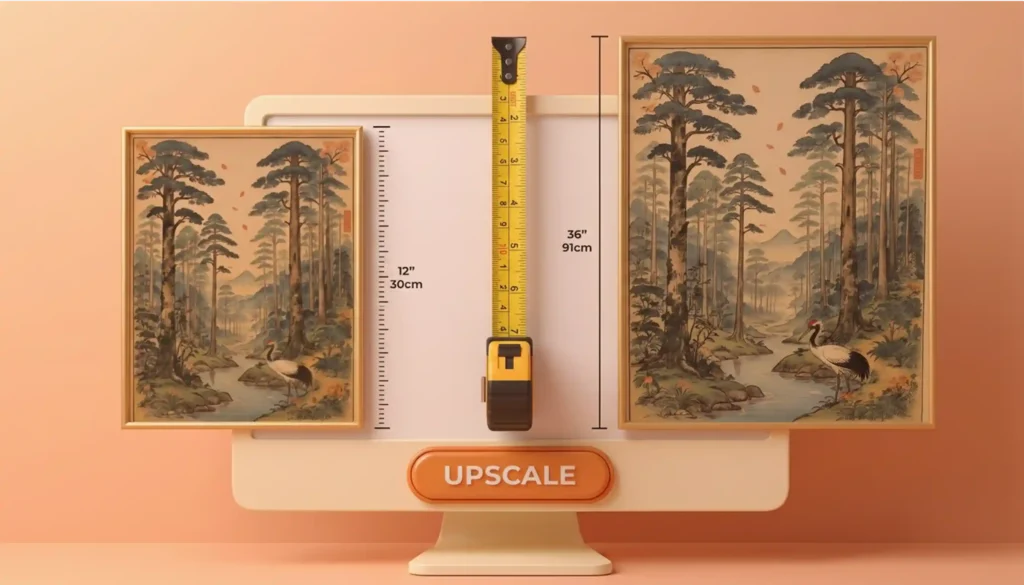
You generate AI art, drop it into an AI upscaler, hit the button, and end up with a hazy, pixelated disappointment. This is because upscaling AI art involves more than just hitting the upscaler button. Getting your base image right is the secret to a crisp, high-quality upscale. That’s especially true if you’re aiming for a 24″ x 36″ poster, currently the most popular large size for art prints on Etsy. That’s why this tutorial will walk you through a step-by-step process to upscale your AI art to that size, because once you know how to prep the biggest size, scaling down to smaller formats is just a matter of cropping and resizing.
What is the ideal print resolution?
Printing needs 300 PPI, but AI images usually hand you a 72 PPI image. That’s why you can’t just make the image bigger; you actually have to upgrade the resolution too.
AI upscaler options
There are two of the best AI upscaling tools available on the market:
- Topaz Gigapixel — One-time upscale up to 6x
- Lightroom (uses Topaz Gigapixel only) — One-time upscale up to 4x
What AI upscalers do differently
AI doesn’t just stretch your image out; it actually fills in the blanks with realistic details so it doesn’t turn into a pixelated image. Because these models are trained on millions of high- and low-res photos, they practically ‘know’ what your art is supposed to look like and how to sharpen it up. On the flip side, just manually stretching your image doesn’t add any new detail. It leaves empty gaps in the upscaled version, which is why you end up with that blurry, pixelated image.
Doing the upscale
1. Max out your image size right from the start.
It’s always best to get your base image as big as possible right from the AI tool. A bigger starting file already has more details, which means your upscaler has to do less heavy lifting, and you end up with a much cleaner, higher-quality print.
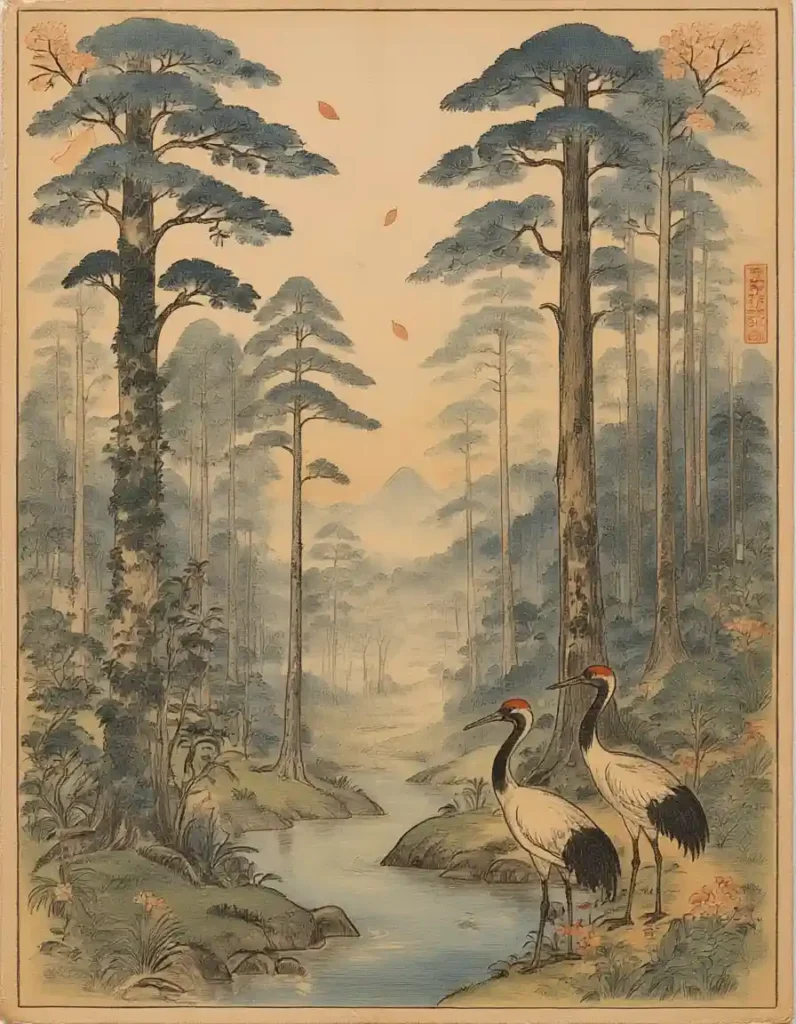
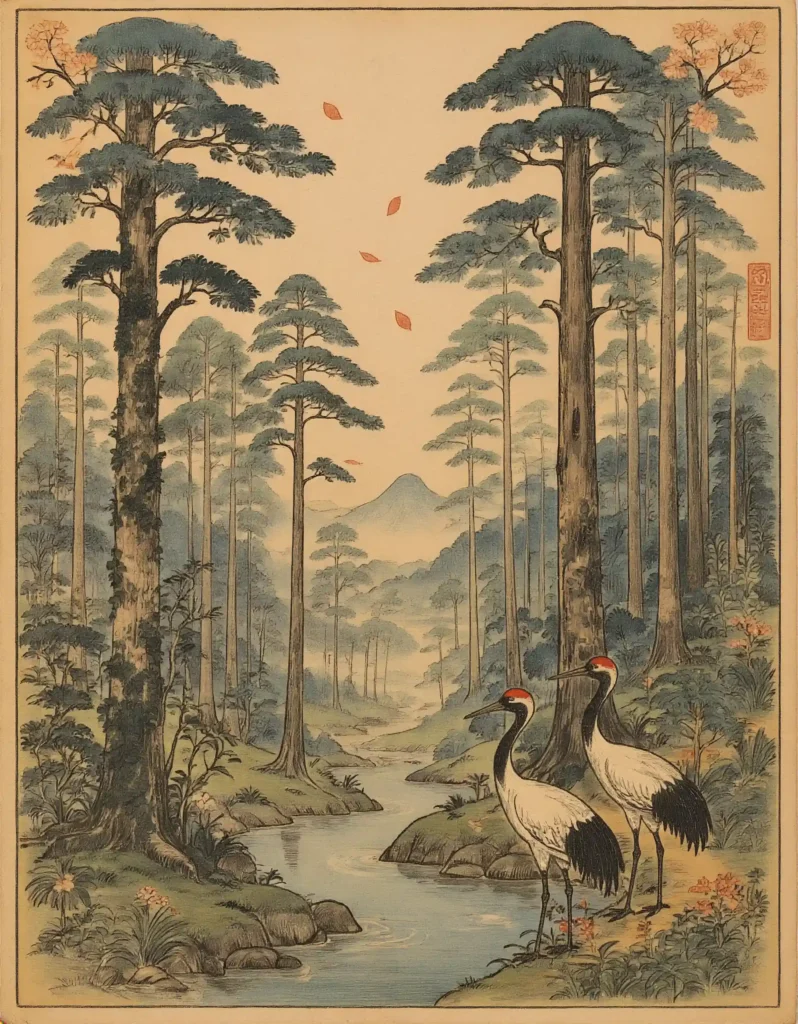
Check out the side-by-side comparison below to see the difference between two versions of the same art made with Adobe Firefly Image 5. The 1K version comes out at 896 x 1152 px, while the 2K version hits 1808 x 2320 px. Right away, you can tell the bigger image is way sharper and packed with a lot more texture.
Smaller image size generated with Adobe Firefly Image 5 model at 1K resolution (896 x 1152 px). The image has fewer details.
Larger image size generated with Adobe Firefly Image 5 model at 2K resolution (1808 x 2320 px). Much sharper and noticeably more detailed.
2. Apply AI denoise
AI denoise is great for clearing up fuzziness on AI art, and it’s pretty much a must-do before you upscale. But heads up: if your style relies on canvas textures, paper grain, or subtle brush strokes, denoise will wipe those right out because it thinks they’re just background noise. Because of that, it can totally change the vibe of your art and make a detailed illustration look super flat and lifeless.
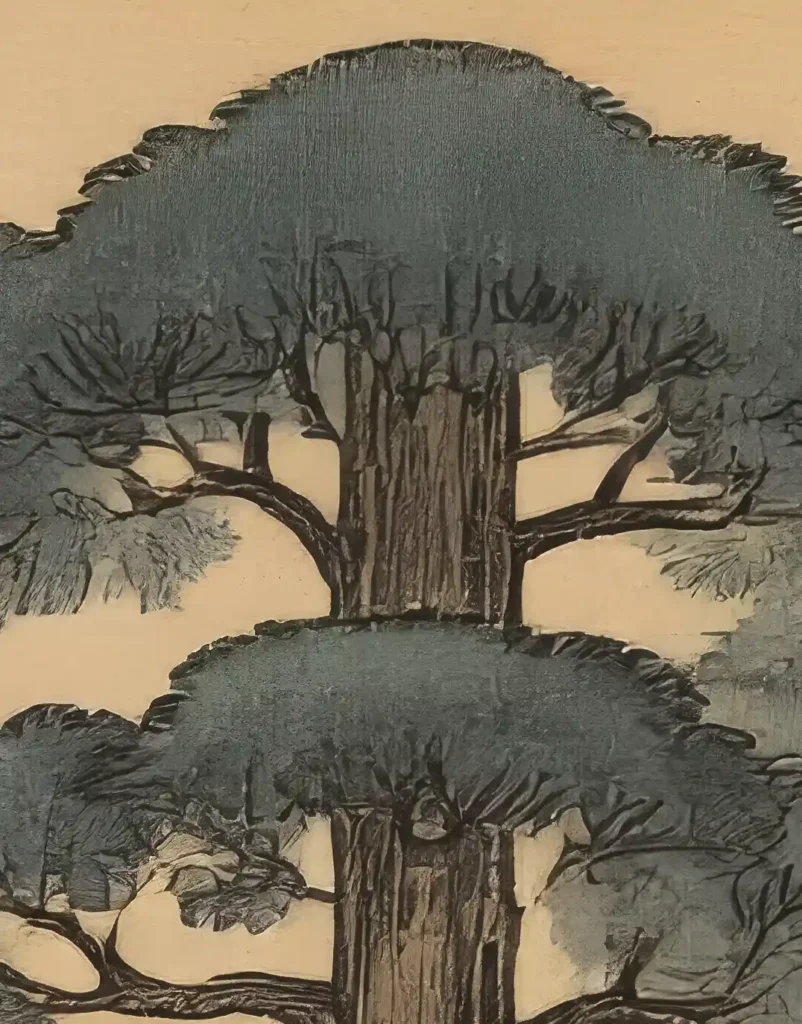
The side-by-side comparison below shows the original next to the denoised version. See how the denoise tool strips away the paper texture and leaves the trees looking like flat, solid color blocks.
Original AI artwork with paper and paint textures
100% AI-denoised artwork with the original textures completely wiped out. It’s got those big, solid blocks of color that make the whole thing look totally flat.
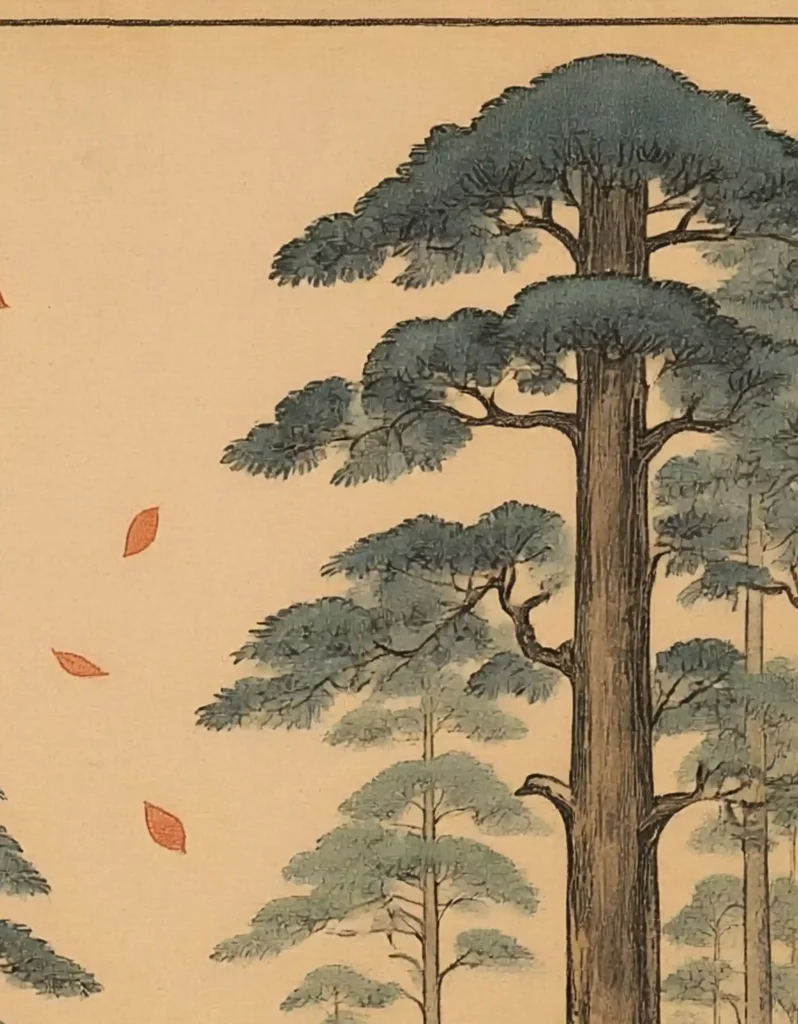
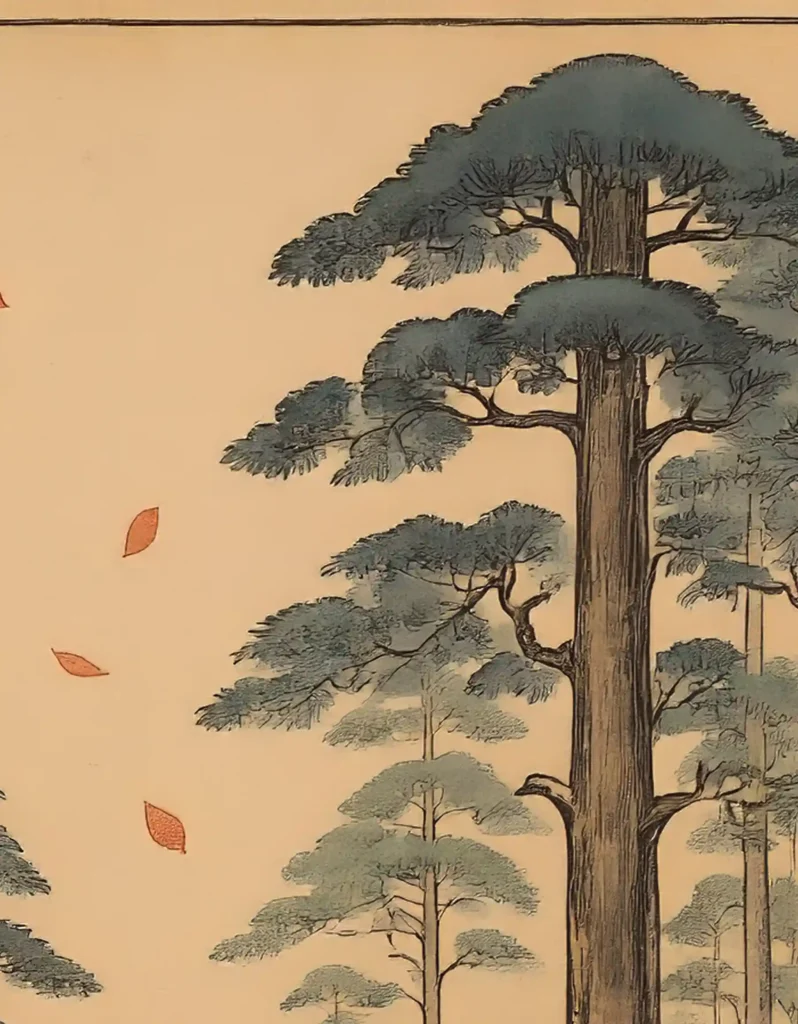
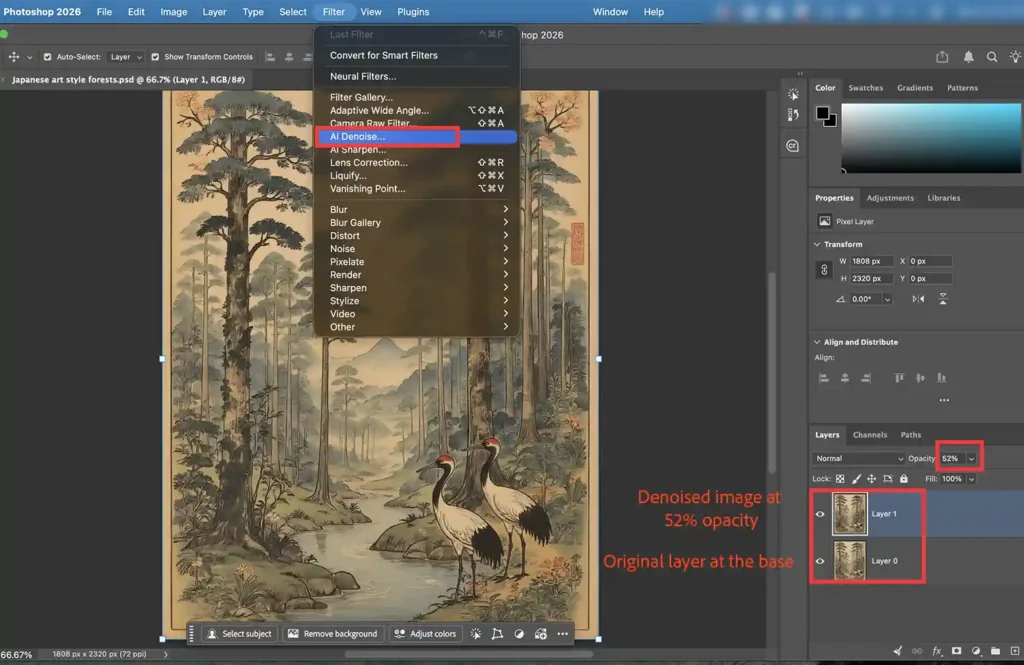
To get around this, just layer your denoised image right over the original in Photoshop and drop the opacity to 40–60%. That way, you clean up the fuzz while keeping all your original textures intact.
Check out the screenshot below; the original image was duplicated, stacked right on top, and run through the denoise filter. The top layer’s opacity was dialed back to 52% to keep that original texture showing through.
The Result
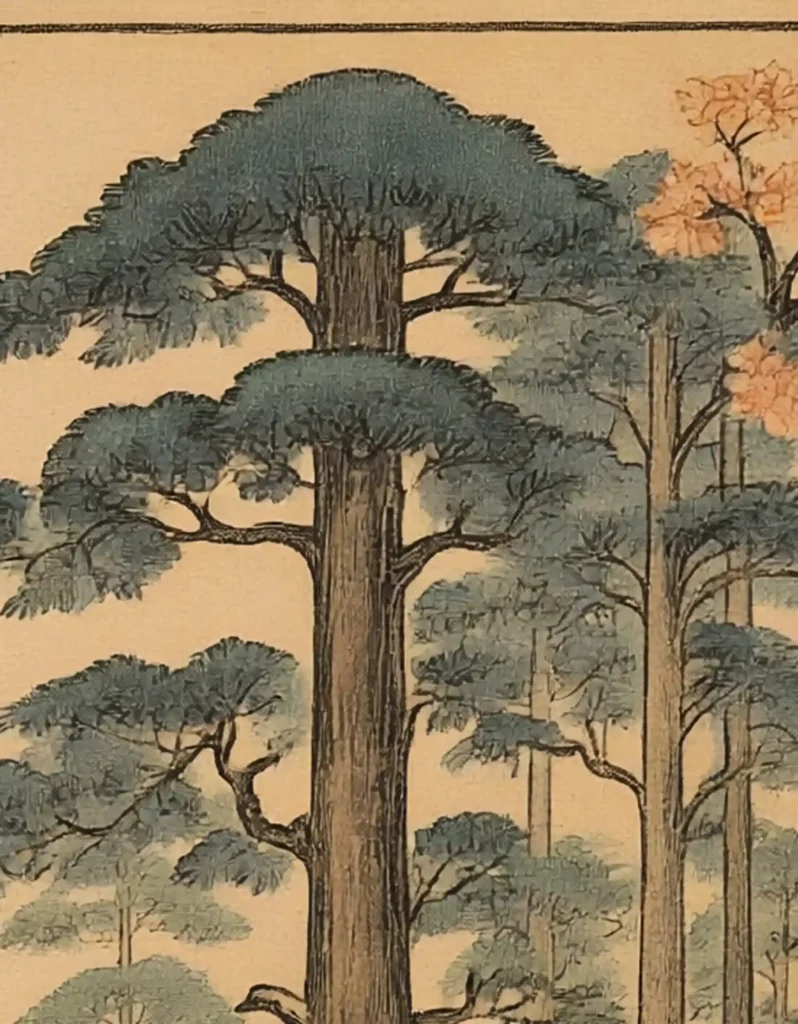
The result is way better than just blindly running a denoise filter. By layering the denoised version over the original at 52% opacity, you clear out the haziness while keeping all your original textures right where they belong.
Original Image with too much noise
Denoised image with original texture
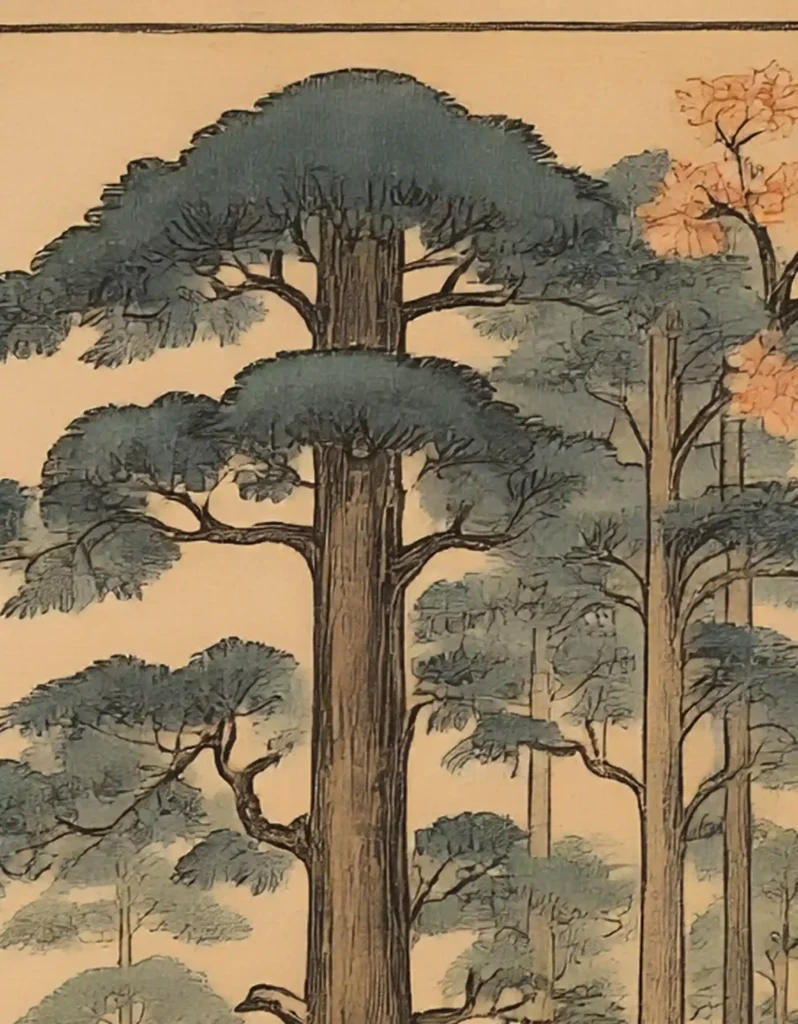
3. Upscale the denoised image
How much should you upscale for 24” x 36”?
Modern models from Adobe Firefly and Midjourney can kick out images hitting around 2,000 px on each side. When you run a 4x upscale at 300 PPI, you end up with roughly 8,000 px per side, which easily covers a 24” x 36” poster. Not to mention, anything beyond 4x is overkill unless you are offering bigger sizes. On top of that, aggressive upscaling leaves you with massive files that are hard to manage.
Why Adobe Lightroom for upscaling?
With Lightroom, you’re not just getting a powerful 4x upscaler that easily hits that 24” x 36” sweet spot—you’re getting a full, pro-grade editor. Just keep in mind that you’ll want Photoshop to prep your base file first, and pairing the two gives you total flexibility for all your edits. They both offer unmatched editing control that goes way beyond just sliding a bar, making the Photoshop and Lightroom bundle a much better deal than any standalone upscaler.
How to upscale?
AAs you can see in the screenshot below, just open your denoised image in Lightroom, head up to the Photo menu, hit Enhance with AI, choose Generative Upscale, pick the 4x option, and click Upscale.
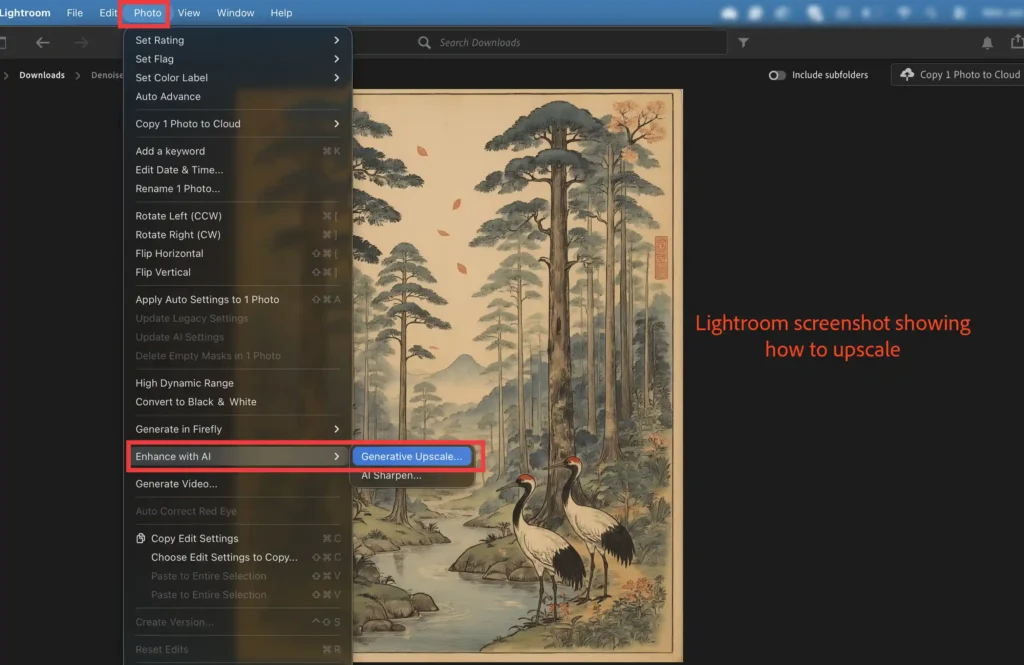
The result
Lightroom takes an 1808 x 2320 px image at 72 PPI and bumps it all the way up to a massive 7232 x 9280 px at 300 PPI, saving the whole thing as a separate DNG file.
4. Fine-tune the sharpening (if it needs it)
Lightroom automatically adds a bit of sharpening right after the generative upscale, but you can always play with the slider if it calls for it. Luckily, our tutorial image looked great as-is and didn’t need any tweaking.
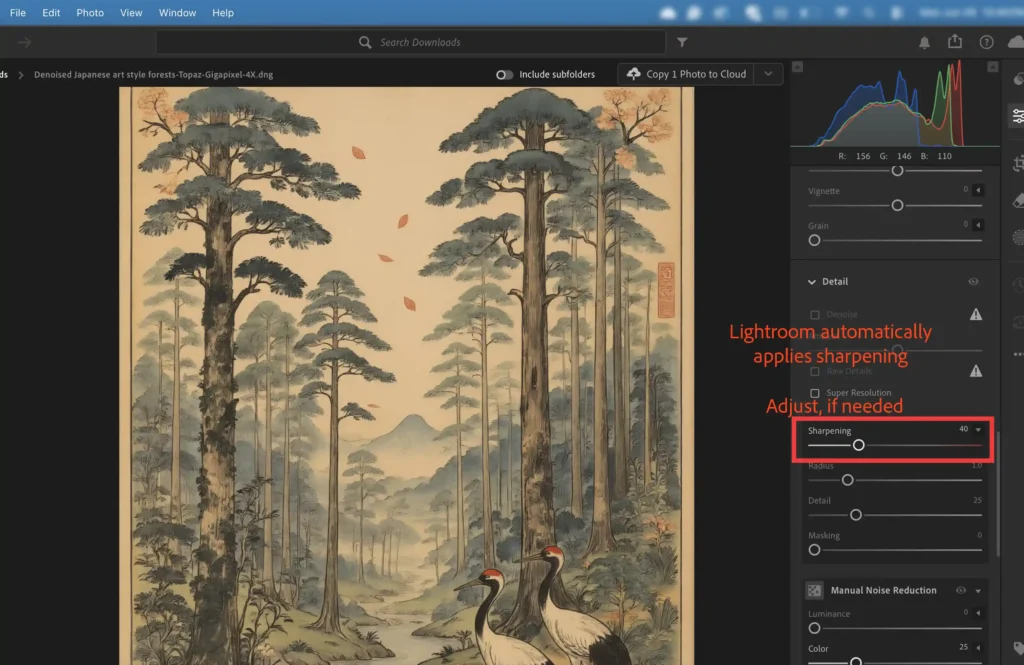
5. Take a look at your final upscaled image
After running the upscale, always zoom right into 100% in Photoshop to check out the details and make sure everything stays crisp instead of turning into a pixelated or blurry mess. If things look pixelated or hazy, it’s usually because of one of two things: either your base image was already low-quality, since AI upscalers can’t magically fix a bad foundation or you skipped the denoise step beforehand, which leaves you with a hazy look.
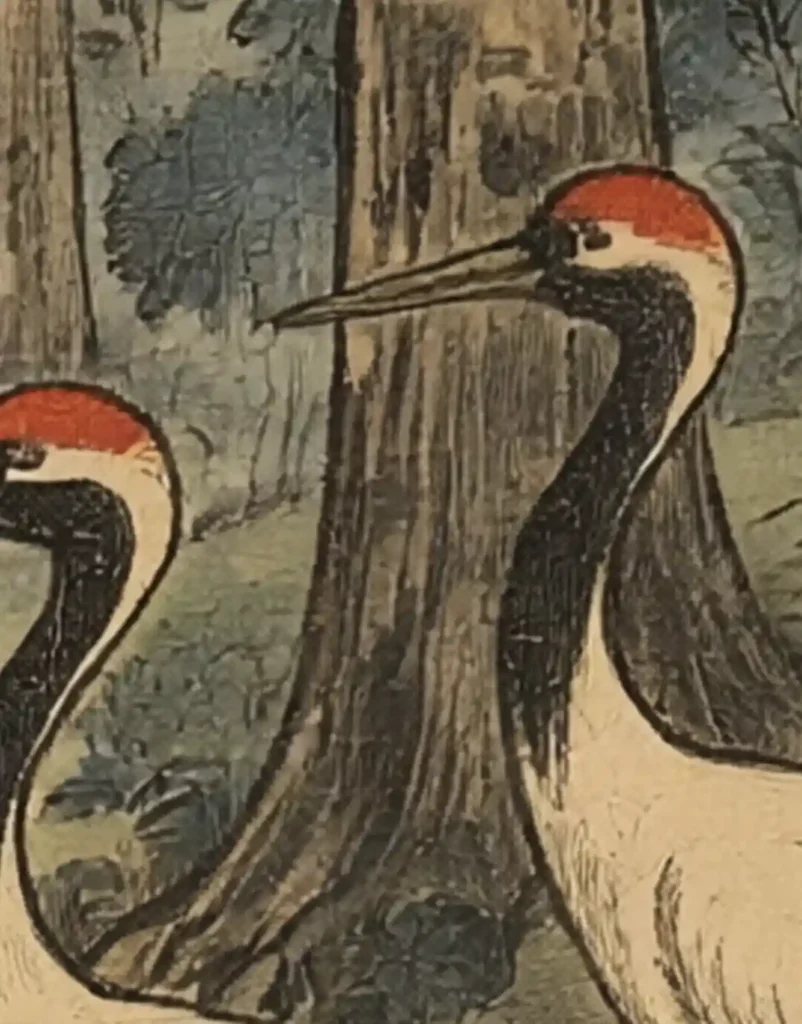
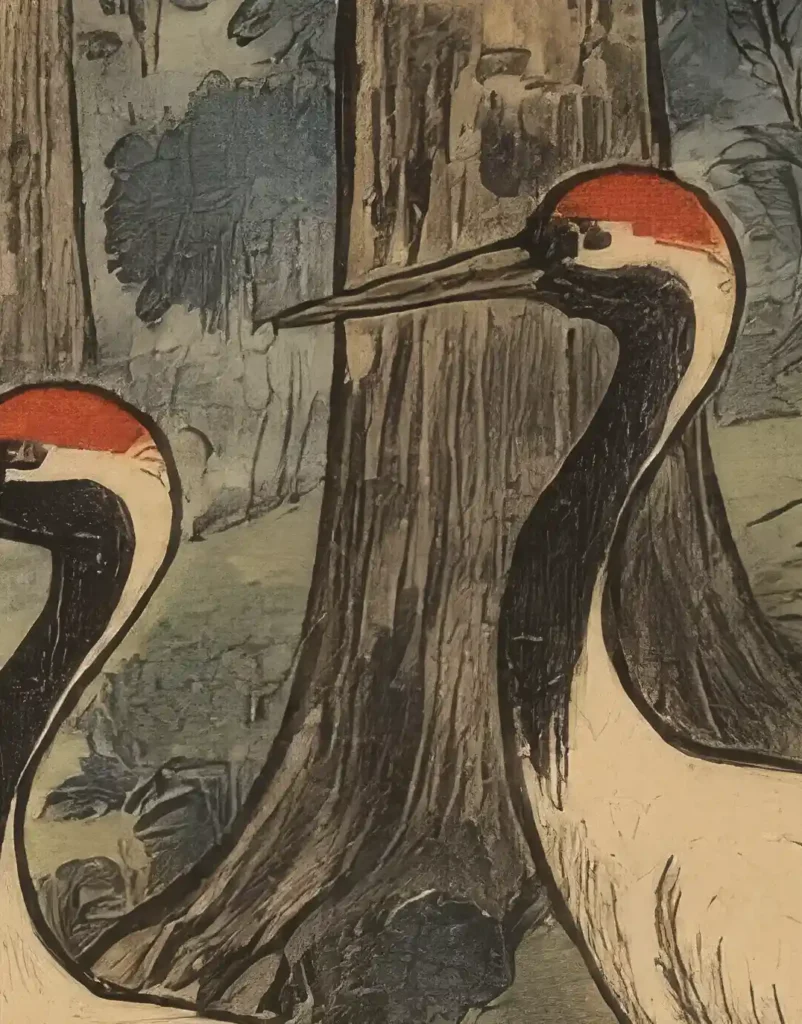
In the screenshots below, you can see a side-by-side comparison of the original and the final upscaled image at 100% zoom. Here, you can really see the massive difference: the upscaled image is super sharp and clear, with zero haziness, completely crushing the original.
BEFORE
AFTER
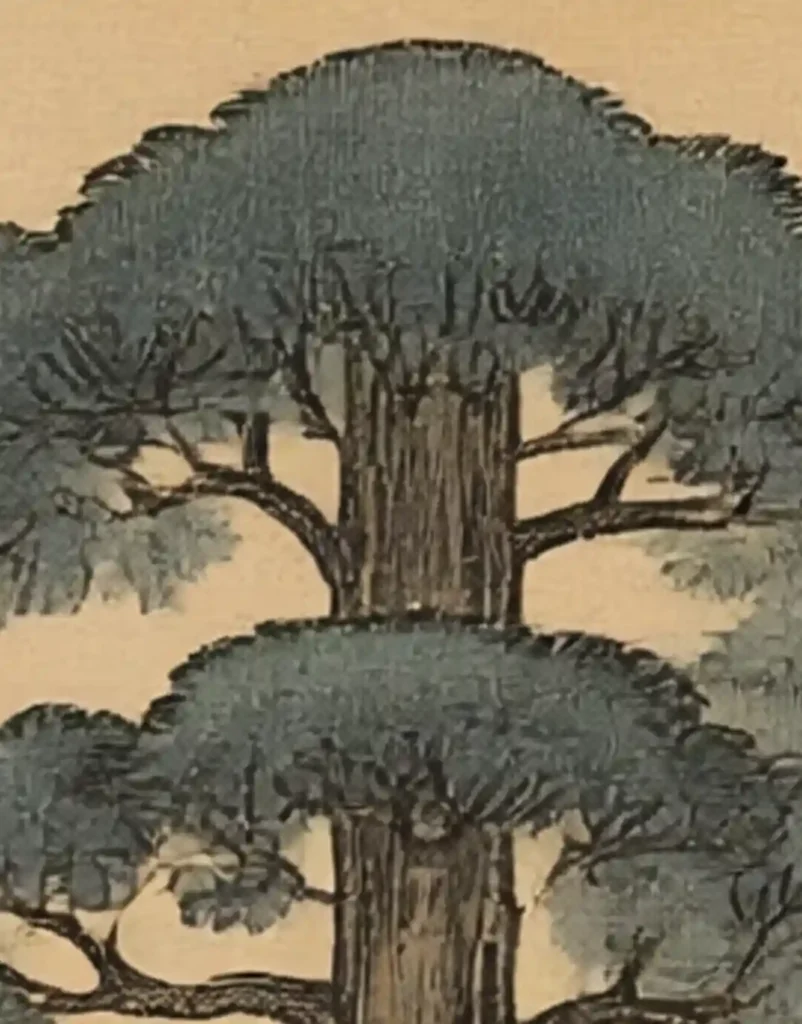
6. Get your upscaled image sized and ready
Create a Photoshop file with the following settings:
Width: 24 Inches
Height: 36 Inches
Resolution: 300 Pixels/Inch
Color Mode and Color Profile: RGB/8-bit or CMYK/8-bit (depending on the print provider’s requirements).
Color Profile:
RGB – sRGB IEC61966-2.1
CMYK – GRACoL2006 or Coated FOGRA39 (depending on the print provider’s requirements).
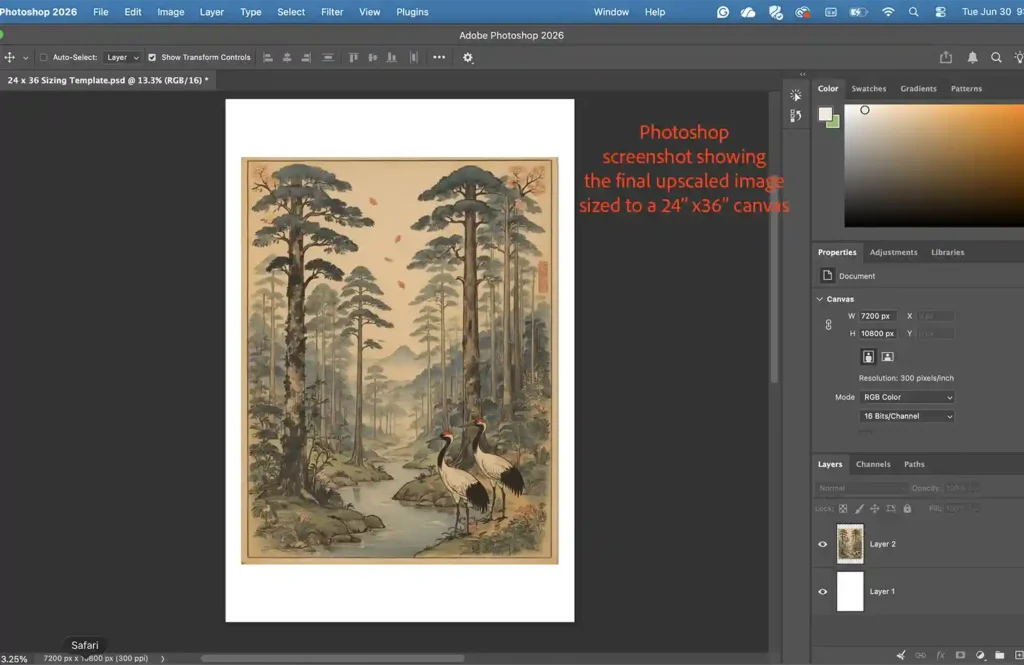
Once your Photoshop file is locked in with the right settings, drop your final upscaled image right in and stretch it to fit the canvas. If stretching it to fit crops out edge details you want to keep, just resize the image down a bit to leave clean white borders around it instead. This trick not only prevents cutting important parts of your design, but it also gives your prints a fine-art appearance.